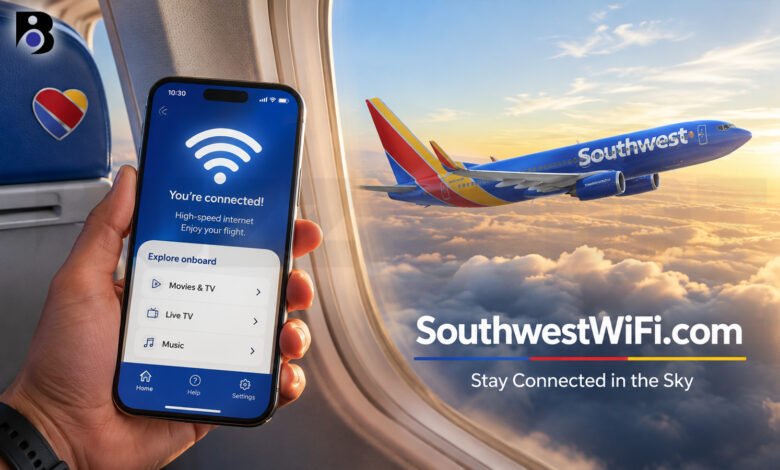
Do you want to go online during your next Southwest flight? Maybe you need to send a work email, watch a movie, or tell your family that you landed safely. To do all of this, you will need to visit one web page: SouthwestWiFi.com.
Many travelers find this page a little confusing the first time. Sometimes it does not load. Sometimes people do not know if they must pay. In this guide, I will explain everything in simple words. You will learn what the site is, how to connect, how to get free Wi-Fi, and what to do when things go wrong.
What Is SouthwestWiFi.com?
SouthwestWiFi.com is the login and welcome page for the Wi-Fi on Southwest Airlines planes. Southwest calls it the inflight portal. When you join the plane’s Wi-Fi network, this page is where you get online, watch free shows, and sign in to your account.
Here is the most important thing to know: this page is made to work on the plane. You join the plane’s network first. Then the page opens, either by itself or when you type the web address. It is not a normal website that you use at home before your trip.
Southwest says you can connect from takeoff to landing on your phone, laptop, or tablet. You only need your own device. If you want to watch movies or TV, bring headphones too.
Is Southwest Wi-Fi Free?
This is the question people ask the most, and the answer is good news for many travelers.
In September 2025, Southwest and T-Mobile announced a new partnership. Starting on October 24, 2025, all Rapid Rewards members can use free, unlimited Wi-Fi on Southwest flights. Rapid Rewards is the free loyalty program of Southwest. You can join before your flight or even while you are in the air.
Here are some details that help you understand the offer:
- You do not need to be a T-Mobile customer. T-Mobile pays for the benefit, but the offer is open to members of any phone company.
- You must be a Rapid Rewards member. Joining is free, so most people can get Wi-Fi at no cost.
- It is available where the plane has Wi-Fi. Southwest says the benefit works only on Wi-Fi-enabled planes that are marked for this service.
- You must log in. The airline asks you to sign in with your Rapid Rewards account to use the free service.
What if you do not want to join the program? You can still buy Wi-Fi. According to NerdWallet, the price is $8 per device for each flight. Because joining is free, many people choose to join instead of paying.
A small warning about older articles: some websites still say Southwest Wi-Fi costs money for everyone, or that you pay $8 per day. That was true years ago, but it is out of date. Always check the official Southwest page if you are not sure.
How to Connect to SouthwestWiFi.com: Step by Step
Southwest shows three simple steps on its own website. Here they are, with a few extra tips.
- Turn on Airplane Mode. Open the settings on your phone, tablet, or laptop and switch on Airplane Mode. This is a normal rule on planes.
- Turn on Wi-Fi. You can turn Wi-Fi back on even when Airplane Mode is on. Look for the network called Southwest WiFi (some devices show it as SouthwestWiFi). It does not need a password.
- Open the portal. A pop-up may appear. If you see a button that says to access the portal, tap it. If nothing opens, start your browser and type SouthwestWiFi.com into the address bar.
After that, you will see the main page. From here you can sign in with your Rapid Rewards details, look at free entertainment, or choose a paid option if you are not a member.
A useful tip: type the address directly into the top bar of your browser. Do not type it into a search box. Searching for it can send you to a different website instead of the plane’s page.
How to Get Free Wi-Fi If You Are Not a Member Yet
Do not worry if you do not have a Rapid Rewards account. Southwest says you can sign up for free before your trip or while you are flying. Here is a simple way to do it:
- Before the flight, go to the Southwest website or app and join Rapid Rewards. It takes a few minutes.
- Write down your account number, or save it in your phone. Some people forget their number and then cannot log in on the plane.
- On the plane, connect to the Wi-Fi network and open the portal. Sign in with your account details.
Joining at home is easier than joining in the air. The page on the plane can be slow, and typing your personal details on a small screen is not much fun. If you can, take care of this task on the ground.
What Can You Do Once You Are Online?
Free Wi-Fi sounds great, but what can you really do with it? Southwest says members can browse, work, shop, stream, and chat with friends. In real life, the quality depends on the plane and on how many people are online at the same time.
Here are the things most people use the Wi-Fi for:
- Messaging apps. Short chats are usually easy because they use very little data.
- Email and web pages. Reading and sending emails works well on most flights.
- Entertainment. Southwest offers free movies and live TV on some planes. You watch them through the portal, using your own device.
- Work tasks. Light work, like documents and email, is fine. Big video calls are harder.
There is one thing to remember about entertainment. Southwest says that, because of licensing rules, free movies, TV shows, and live TV may not be on every Wi-Fi flight. On some flights you may need to watch content that you downloaded to your device before the trip. So if movies are important to you, download a few before you go to the airport.
Also, some websites and apps use a lot of data. NerdWallet reports that Southwest blocks some heavy services, like Netflix, HBO Max, Zoom, and Microsoft Teams, to keep the network stable for everyone. If a video app does not work, this may be the reason, and it is not a problem with your phone.
How to Fix SouthwestWiFi.com Login Problems
Sometimes the portal does not open, or you cannot sign in. This happens to many travelers, and it is usually easy to fix. Try these steps in order.
1. Check the network name
Make sure you joined the plane’s network and not a different one. Look for Southwest WiFi in your list. If you see more than one similar name, pick the one with the airline’s name.
2. Type the address yourself
If no pop-up appears, open your browser and type SouthwestWiFi.com. Use the address bar at the top. Some people say that using the “http” version of the address, without the secure “s,” helps the page open. If one version fails, try the other.
3. Turn Wi-Fi off and on
Switch Wi-Fi off, wait ten seconds, and switch it on again. Then rejoin the Southwest network. This simple trick fixes many small problems.
4. Forget the network and join again
Go to your Wi-Fi settings, choose the Southwest network, and tap “Forget this network.” Then connect again like it is the first time. This clears old settings that may confuse your device.
5. Try a plain web page to wake up the portal
Some devices do not show the login page right away. A common trick is to open a simple page that does not use the secure “https” lock, such as neverssl.com. This can make the portal pop up. This tip comes from travel websites and users, not from Southwest, but many people say it works.
6. Check your Rapid Rewards details
If you can reach the portal but cannot sign in, check your account number and your name. Make sure you typed everything the same way as on your account. Wrong details are one of the most common reasons for a failed login.
7. Try another browser or device
If one browser fails, try another one, such as Safari or Chrome. You can also try your phone instead of your laptop. Close extra tabs and old apps first, because they can use your connection.
8. Ask the crew
If nothing works, politely ask a flight attendant. Sometimes the Wi-Fi system on the plane is not turned on yet, or it has a short problem. The crew can often tell you if the service is working on your flight.
Why Is the Wi-Fi Sometimes Slow?
Even when you are connected, the Wi-Fi may feel slow. This does not always mean you did something wrong. Here are the most common reasons:
- Many people are online. On a full flight, hundreds of devices share the same connection. Speeds can drop when everyone is online at once.
- The plane’s equipment is older. Not all Southwest planes have the same Wi-Fi system. Some have older systems that are slower than newer ones.
- Weather and other conditions. Signal can be affected by the flight path and the weather.
- Short system problems. Like any technology, the system can have small problems that fix themselves after a few minutes.
If your connection is slow, be patient. Use the Wi-Fi for light tasks first. Save large downloads and uploads for when you are on the ground. One regular Southwest flyer shared this idea on the airline’s own community forum: send the big files later, and use the fast moments for small tasks.
Starlink: What Is Changing for Southwest Wi-Fi?
Good news is coming for people who find the Wi-Fi too slow. Southwest is adding Starlink, the satellite internet service from SpaceX, to its planes.
Here is what we know from news reports and the airline’s own announcements:
- In February 2026, Southwest said that Starlink Wi-Fi would be on more than 300 of its planes by the end of 2026.
- The airline says Starlink will help customers stream shows, watch live sports, play games, work, and keep in touch from takeoff to landing.
- In a new company announcement from October 2026, Southwest said it plans to bring Starlink to its whole fleet in 2027. The airline expects the full upgrade in the fall of that year.
- Southwest still plans to keep Wi-Fi free for Rapid Rewards members, thanks to T-Mobile, where it is available.
Because the change happens step by step, you may fly on a plane with Starlink on one trip and an older system on the next. At the moment, there is no simple way to be sure before you board, so keep your expectations flexible. As more planes get the upgrade, your chances of a fast and smooth flight will grow.
Safety Tips for Using Plane Wi-Fi
Plane Wi-Fi is a shared network, just like Wi-Fi in a coffee shop. A few simple habits can keep you safer:
- Do not use banking apps if you can wait. Do the most private things when you are on a trusted network.
- Use a VPN if you have one. A VPN adds a layer of privacy to your connection.
- Look for the lock sign. Only enter personal details on pages that show the secure lock icon in the address bar.
- Check the web address. Make sure you typed SouthwestWiFi.com exactly. Do not follow links from strangers or pop-up messages that look strange.
- Log out when you finish. This is a good habit on any shared network.
- Never share your password. Southwest will never need you to type a password for the Wi-Fi network itself. The network is open, and you sign in through the portal only.
Quick Checklist Before Your Flight
A little preparation makes your flight easier. Here is a short list:
- Join Rapid Rewards at home and save your account number.
- Charge your phone, tablet, or laptop. Bring a charger or power bank.
- Download movies, shows, and music in advance, just in case.
- Download the maps or documents you may need.
- Pack headphones for your own device.
- Write your emails before the flight and send them when you connect.
Final Thoughts
SouthwestWiFi.com is the doorway to Wi-Fi and entertainment on Southwest flights. The steps are easy: turn on Airplane Mode, turn on Wi-Fi, join the Southwest network, and open the portal. For most people, free access is only one Rapid Rewards sign-up away.
If something goes wrong, stay calm. Most login problems are fixed by typing the address yourself, restarting your Wi-Fi, or joining the network again. With Starlink coming to more planes in 2026 and 2027, the connection should get better over time.
Safe travels, and enjoy your flight!
Frequently Asked Questions
Do I have to pay to use SouthwestWiFi.com?
Not always. Rapid Rewards members can use free Wi-Fi on Southwest planes that have the service, and joining Rapid Rewards is free. If you do not want to join, you can buy Wi-Fi. NerdWallet lists the price as $8 per device for each flight. Prices and rules can change, so check the official Southwest page before you fly.
Why does SouthwestWiFi.com not load on my phone?
There are a few common reasons. You may not be joined to the right network, or the login page may not have opened by itself. Try typing SouthwestWiFi.com into your browser, turn your Wi-Fi off and on, or forget the network and join again. Also check that the plane has Wi-Fi, because not every plane has the service. If nothing works, ask a flight attendant.
Can I watch movies and TV on Southwest flights?
Yes, on many flights. Southwest offers free movies and live TV through the portal on select planes. Because of licensing rules, these may not be on every flight. To be safe, download your favorite shows before you leave home. Heavy streaming apps may also be blocked to keep the network stable for all passengers.