Using the internet on a Windows computer is something most people do every day, whether they are checking email, working remotely, watching videos, shopping online, or connecting to public Wi-Fi. While these activities are convenient, many users rarely think about what happens to their internet traffic while they are online.
A VPN can provide a more private way to connect to the internet by creating an encrypted connection between your device and a VPN server. The good news is that using one on Windows does not require advanced technical knowledge.
Here is a practical guide to getting started.
What Does a VPN Actually Do?
A VPN, short for Virtual Private Network, works as an intermediary between your Windows device and the internet. Instead of sending your traffic directly from your device to a website, the connection first goes through a VPN server.
This can help protect the contents of your connection from certain forms of network observation, particularly when using networks that you do not fully control. A VPN can also make websites see the IP address of the VPN server rather than the public IP associated with your normal internet connection.
However, a VPN is not a replacement for good online security habits. You should still use secure passwords, updated software, and caution when opening unfamiliar links.
When Can a VPN Be Useful?
There are several everyday situations where people may choose to use a VPN.
Connecting to Public Wi-Fi
Coffee shops, airports, hotels, libraries, and other public locations often provide Wi-Fi for visitors. These networks can be convenient, but you may not know exactly how the network is configured or who else is connected.
A VPN can add an additional layer of protection by encrypting traffic between your device and the VPN server.
Working Away From Home
Remote workers frequently connect to the internet from different locations. A VPN can help provide a consistent privacy layer when moving between home networks, offices, hotels, and other connections.
Improving Online Privacy
Every internet connection has a public IP address. Depending on the service you use, this address can provide websites with general information about your connection.
Using a VPN changes the public-facing IP address to that of the VPN server, which can reduce the amount of location information directly associated with your normal connection.
How to Set Up a VPN on Windows
Getting started is usually straightforward if you use a dedicated VPN application.
Step 1: Select a VPN Provider
First, choose a VPN service that supports Windows. Before installing anything, look at its privacy policy, available server locations, connection options, and overall features.
It is better to download VPN software directly from the provider rather than relying on unknown download sites.
Step 2: Install the Windows Application
Once you have selected a provider, download its Windows application and complete the installation process.
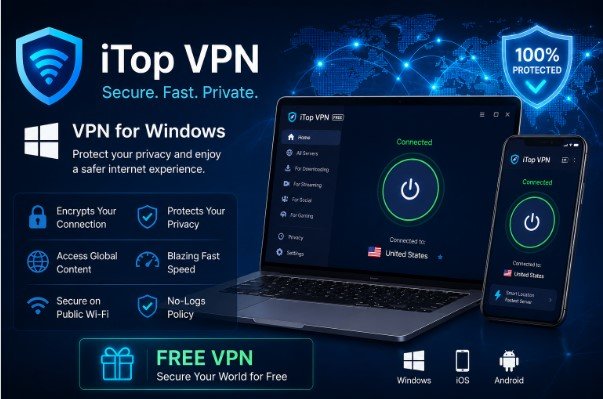
For example, users looking for a Windows-compatible VPN can explore iTop VPN, which provides a dedicated application designed for Windows users.
Step 3: Open the VPN
Launch the application after installation. Depending on the provider, you may need to sign in or create an account before connecting.
Most modern VPN applications are designed with a simple dashboard so users can connect without manually configuring complex network settings.
Step 4: Pick a Server
VPN applications normally provide a selection of server locations.
If connection speed is your priority, a geographically closer server may be a sensible choice. If you need to test a connection from another location, you can select a server in the relevant region.
Step 5: Establish the Connection
After selecting a server, click the connect button. The application should indicate when the VPN connection has been established.
At this point, your internet connection is being routed through the selected VPN server.
Step 6: Verify Your Connection
You can check your public IP address before and after connecting to the VPN. If the VPN is working correctly, websites should generally see the IP address associated with the VPN server rather than your original public IP.
This is also a useful way for beginners to understand what a VPN actually changes.
Are Free VPN Services Worth Trying?
People who have never used a VPN may prefer to test the technology before paying for a subscription. A free VPN can provide a starting point, but users should pay attention to what is included.
Free services may have limitations involving server locations, bandwidth, speed, features, or the number of simultaneous connections. More importantly, users should understand the provider’s privacy practices before trusting a service with their internet traffic.
The word “free” does not automatically mean that a VPN is safe or private. Always check how the provider handles data and whether its policies are clearly explained.
How to Get Better VPN Performance
A VPN can sometimes reduce connection speed because your traffic is traveling through an additional server. Fortunately, a few simple adjustments can help.
Start by trying a server that is closer to your physical location. If one server is slow, switching to another can sometimes improve performance. You can also close unnecessary applications that are using significant bandwidth.
For activities that require a stable connection, such as video calls or large downloads, experimenting with different server locations can help you find a suitable connection.
Common VPN Mistakes to Avoid
One common mistake is assuming that a VPN makes every online activity completely anonymous. It does not. Websites can still collect information through accounts, cookies, browser settings, and other technologies.
Another mistake is installing applications from questionable sources. A VPN handles internet traffic, so choosing a trustworthy provider is particularly important.
Finally, users should not forget to update both Windows and their VPN application. Updates can include important security improvements and bug fixes.
Conclusion
Using a VPN on Windows can be much easier than it initially appears. With a dedicated application, you can install the software, select a server, connect, and verify your new public IP address in just a few steps.
A VPN can be useful when connecting through public Wi-Fi, working remotely, or simply adding another privacy layer to everyday browsing. The key is to choose a provider carefully and understand what a VPN can—and cannot—do.
With the right setup and sensible security habits, Windows users can make VPN technology a practical part of their everyday internet experience.