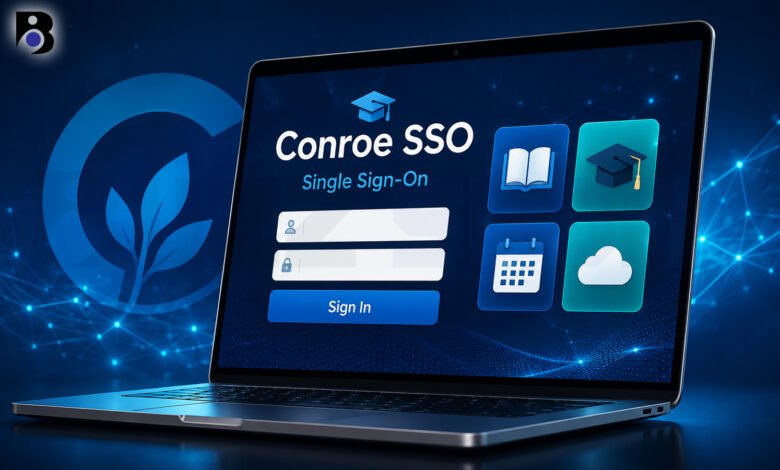
Logging in to school apps should be simple. But when a password stops working or a login code does not arrive, it can ruin your morning fast. If you are a student, parent, or staff member in Conroe, Texas, this guide is for you.
Conroe SSO is the main sign-in page for Conroe Independent School District, also called Conroe ISD. In this article, you will learn what it is, how to sign in, and what to do when something goes wrong. The steps come from the district’s own help pages. Rules can change, so if your screen looks different, check the district help site listed at the end.
What Is Conroe SSO?
SSO stands for single sign-on. It means you use one username and one password to open many school apps. You do not need to remember a different login for every tool.
In Conroe ISD, the SSO page runs on a service called ClassLink. The sign-in page is at sso.conroeisd.net. After you log in, you see a dashboard. Think of it as a home screen with all your school apps in one place.
What you see depends on who you are. Staff members can find tools like Incident IQ, where they send help tickets, and the Employee Directory. Teachers use an app called My Classes to help their students with logins. Students use SSO to reach their school tools, such as the Canvas learning platform.
One thing is good to know: the Parent Portal is a separate website. It lives at parents.conroeisd.net and uses its own account. Parents do not use the student SSO login to see their child’s information there.
Who Uses Conroe SSO?
Three main groups use the system.
Students use it to sign in to learning tools on school Chromebooks and other devices. Older students type a username and password. Younger students may use a QR code card, which we explain below.
Teachers and staff use it every day to open apps, send help tickets, and manage their classes. Staff accounts have an extra safety step: a login code.
Parents and guardians do not sign in to the student system themselves. But they often need to help a child who is locked out, so this guide is useful for them too.
How to Sign In Step by Step
For Students
- Open a web browser. Google Chrome or Microsoft Edge works best.
- Go to sso.conroeisd.net.
- Type your username and your password.
- If your school uses a picture login, choose your picture when the page asks.
- Wait for your dashboard to load, then open the app you need.
If this is your first time, you will use a starting password, which the next section explains. After that first login, the system asks you to create your own password.
For Staff
Staff members use the same page. After you enter your username and password, you also enter a code from your phone. This extra step is called multi-factor authentication, or MFA. It protects your account, even if someone learns your password.
A Quick Browser Tip
Conroe ISD asks families to use Chrome or Edge. The district says Safari may cause problems, such as passwords that are not accepted or accounts that do not load right. The district also suggests that you log out of any personal Google accounts on the device before you sign in to the school system. This small step solves many “it won’t let me in” problems.
New Student Passwords for the 2026-2027 School Year
This year, something important changed. For many years, student accounts started with the same simple password pattern: “stu” plus the student ID number. The district now says this older pattern is no longer safe enough.
Starting with the 2026-2027 school year, every student gets a new random starting password. Here is how it works:
- Teachers or school leaders give each student their starting password on the first day of school.
- Staff can find the password in a system called ViewIT, on the student’s information page. It is listed as “Student Initial PW” in the Emergency Information section.
- Students use this starting password for their first login only.
- Students in Grade 3 and above must then create a new password of their own.
- The new password cannot be one the student used before.
If your child forgot the new password they created, a teacher will need to reset it. We cover that in the next sections.
Picture Login and QR Code Cards
Typing a long email address and password is hard for small children. Conroe ISD has two tools to help.
Picture login. Some students pick a picture as part of the sign-in process. If a student forgets which picture they chose, a teacher can clear it. The next time the student logs in, they pick a new picture.
QuickCards. Younger students in pre-K to Grade 2, and many special education students, can use a card with a QR code to sign in fast. Teachers can print these cards for the whole class from the My Classes app. They click the “Generate QuickCards” button, and then print the page.
If you are a parent, you do not need to do anything special here. Just ask your child’s teacher if you have questions about the card or the picture.
Staff Tip: New Phone, Old Codes
Many staff members run into this problem. You get a new phone, and your login codes do not work anymore. That happens because the codes are stored on your old phone. They do not move to a new phone by themselves.
Here is what the district suggests:
- On the login page, click “Try another method.” You can get a code by text message or by email.
- After you log in, open your settings and add your new phone.
- If you cannot log in at all, send a ticket through Incident IQ. Pick the ClassLink SSO category and say that you have a new device.
The best idea is to fix this before you give away or reset your old phone.
Common Problems and How to Fix Them
1. You Are Locked Out
The system locks an account when someone types the wrong password too many times. This is a safety feature, not a bug. The rules are a little different for each group.
Students: The limit is five wrong tries. After that, the student must wait five minutes before trying again. A teacher cannot shorten this wait. The district says that resetting a password during the lockout will not remove the timer. So the best move is to wait, then try again carefully.
Staff: The district says to close your browser and wait 15 minutes. Be careful here. If you try to log in again before the 15 minutes end, the timer starts over. So it is best to step away for a while.
2. You Forgot Your Password
Students: Ask any of your teachers for help. Here is the process:
- Tell your teacher that you need your SSO password reset.
- Your teacher creates a temporary password for you.
- Go to sso.conroeisd.net and sign in with your username and the temporary password.
- The system asks you to make a new password. Type it twice to confirm.
Teachers can reset passwords for students in Grades 5 to 12. Only a student’s official teacher can do this. A librarian or another staff member cannot. For students in Grade 2 and below, the staff member should not reset the password. They look up the starting password in ViewIT instead.
Staff: Use the sign-in page. Click the link that says “Help, I Forgot My Password” under the login box. Type your username and follow the steps. After you change your password, log out of all your devices and log back in with the new one. This helps stop new lockouts, because an old device may keep trying the old password.
3. You See “Access Denied” or a Page Will Not Load
Your browser saves small pieces of old data called cookies. Sometimes they clash with school apps. Clearing them often helps. In Chrome, do this:
- Press Ctrl + Shift + Delete on your keyboard.
- Set the time range to All time.
- Click Clear data.
- Close the browser and open it again.
If that does not help, check the points from earlier: use Chrome or Edge, and log out of personal Google accounts first.
4. A “Forgot OLD Password” Screen Shows on a Chromebook
Sometimes a school Chromebook shows a screen that says “Forgot OLD Password.” Students do not need to panic. The district says to choose “Proceed Anyway” or follow the steps on the screen to clear the saved data on the device. If the problem stays, the next step is to wipe the Chromebook, which a teacher or the help team can arrange.
Staying Safe Online
A strong sign-in system only works if people use it with care. Here are some simple habits:
- Never share your password. Not with friends, and not in a group chat.
- Think before you click. If you get an email that looks odd, do not open the links or files. Staff members should forward it to security@conroeisd.net and then delete it.
- Use approved apps only. The district checks every school app before it is allowed. Staff can look up an app in LearnPlatform to see if it is approved or denied.
- Log out on shared devices. This is especially important on computers that many people use.
Parents can help by talking with their children about these habits. A few minutes of talk at home can save a lot of trouble later.
Where to Get Help
If you tried the steps above and still cannot sign in, you have a few good choices.
- Students: Ask any of your teachers first. They can reset your password or your picture login.
- Parents: Ask your child to talk to a teacher. For Parent Portal questions, such as a missing student, contact the registrar at your child’s school. They can link your child to your account.
- Staff: Send a ticket in Incident IQ. Make sure you pick the right category, such as ClassLink SSO.
- Everyone: Check the district’s system status page at status.conroeisd.net to see if the problem is on the district side. You can also email the help desk at help@conroeisd.net or search the Conroe ISD Knowledge Base at kb.conroeisd.net.
When you ask for help, give clear details. Say what device you use, which browser you use, and what message you see. This helps the support team fix the problem faster.
Final Thoughts
Conroe SSO saves time because it puts school apps behind one login. Most sign-in problems have a simple cause, like a wrong password, a busy lockout timer, or a browser that needs a clean-up. If you stay calm, wait out the lockout time, and follow the steps in this guide, you can fix most problems in a few minutes.
Remember the key points. Use sso.conroeisd.net with Chrome or Edge. Never share your password. Ask a teacher for help if you are a student, and use Incident IQ if you work for the district. If you are not sure, the district’s help pages are the best place to check for the latest steps.
Frequently Asked Questions
How long am I locked out of Conroe SSO after too many wrong passwords?
For students, the system allows five wrong tries. After that, the student waits five minutes before trying again. For staff, the district says to close the browser and wait 15 minutes. Do not try to log in during that time, because it can restart the timer.
Who can reset my child’s password?
A teacher of record can do it. This means one of your child’s own teachers. Students in Grades 5 to 12 can ask any of their teachers for a temporary password. Then the student signs in with that password and creates a new one. Other staff members, such as a librarian, cannot do this reset.
Why do I get an “Access Denied” message, and how do I fix it?
The most common causes are an old saved browser data problem or the wrong browser. First, switch to Google Chrome or Microsoft Edge, because the district does not recommend Safari. Next, log out of any personal Google accounts on the device. If it still fails, clear your browser data for “All time” and restart the browser.