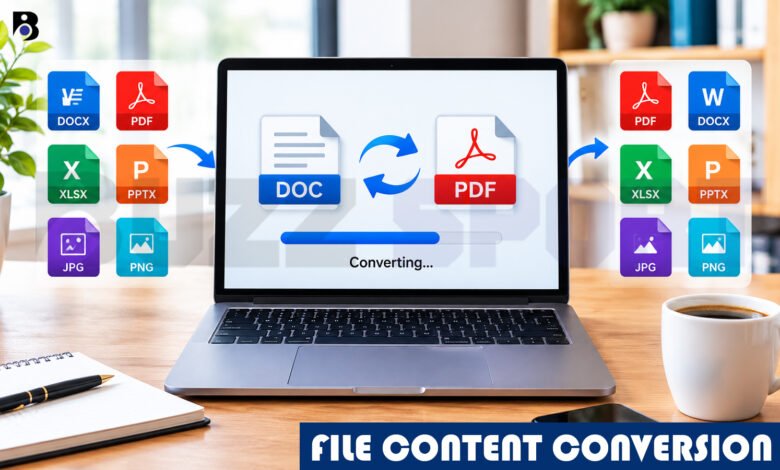
Have you ever tried to open a file and seen an error message? Or sent a document to a friend and heard, “I can’t open this”? It happens to almost everyone. The fix is often simple: file content conversion.
In this guide, you will learn what file content conversion is, when you need it, and how to do it step by step. You will also see how to keep your quality, avoid common problems, and protect your private files. Everything is explained in plain, easy words.
What Is File Content Conversion?
File content conversion means changing a file from one format to another. A format is the way a file stores its information. You can see the format in the file ending, such as .docx, .pdf, .jpg or .csv.
People convert files so that they work with a specific app, device or system. A photo editor may not open a certain picture type. A phone may not play a certain video type. A website may need smaller images to load faster. Conversion solves all of these problems.
The word “content” matters here. Good conversion keeps what is inside the file, like your text, tables, pictures and data. One guide describes it as a kind of digital translation, where the file structure changes but the visible subject stays the same. Think of it like moving your clothes from a small bag into a bigger suitcase. The clothes stay the same, but the container is different.
Some companies also use the term for bigger projects. In that case, content conversion means moving existing content into a new file format, platform or delivery method. In this article, we focus on the everyday kind that you can do yourself.
Why Do You Need to Convert Files?
There are many good reasons. Here are the most common ones:
- Sharing: A PDF looks the same on every device, so it is a safe choice for sending a finished document.
- Editing: A PDF is hard to change. If you need to edit it, you may want a Word file.
- Speed: Large pictures make websites slow. Converting them to a lighter format helps pages open faster.
- Compatibility: Old programs and new programs do not always understand each other’s files.
- Data work: Apps and databases often need data in a simple format like CSV.
- Space: Some formats are much smaller, so you can save storage or send files by email more easily.
The Most Common Types of File Conversion
Let’s look at the conversions people do most often.
1. Document Conversion
This includes Word, PDF, PowerPoint and text files. Many online tools can change documents between PDF and popular types such as Word, Excel, PowerPoint, JPG and PNG.
The trickiest one is PDF to Word. A PDF has a fixed layout. When you convert it to Word, that locked layout breaks into free text blocks, and Word tries to match them. This is why your document can look a little different after conversion.
2. Image Conversion
Pictures come in many formats. The main ones are JPG, PNG, GIF and WebP.
WebP is a newer format from Google, and it is popular for websites. Google says lossless WebP images are 26% smaller than PNG files, and lossy WebP images are 25% to 34% smaller than similar JPEG files. Smaller files mean faster pages. WebP can also keep transparency and animation, so it can replace PNG, JPEG and GIF in many cases.
3. Spreadsheet and Data Conversion
The two big names here are CSV and XLSX.
CSV stands for Comma-Separated Values. It is a very basic text format for table data. Because it is plain text, almost any program can read it. XLSX is the default Excel format since 2007, and it can hold many sheets, formulas, colors, charts and pivot tables.
So which should you pick? A CSV cannot store bold text, colors, formulas or pivot tables, so it is not right if you need those things. But if you only have one sheet of plain data, CSV is usually the cleaner choice.
4. Text Encoding Conversion
This one is less known, but it causes many strange problems. Encoding is the system that turns letters into computer code. UTF-8 is a very common encoding on the web, and it can show all Unicode characters.
5. Audio and Video Conversion
You may also change MP3, WAV, MP4 or MOV files. This helps when a device supports only some types. We will not go deep on these here, but the same basic steps and tips apply.
How to Convert a File: Step by Step
The process is almost the same for any file type. Follow these steps.
Step 1: Make a Copy of Your Original File
Always keep the original safe. If something goes wrong, you can try again. One guide also suggests keeping the original PDF as a backup and storing original and converted files in clearly named folders. Good names, like report-original.pdf and report-converted.docx, save you a lot of confusion.
Step 2: Decide What Format You Need
Ask yourself one question: what will I do with the file? If you want to edit text, choose Word. If you want to share a final version, choose PDF. If you want a fast website picture, choose WebP or JPG.
Step 3: Choose a Conversion Method
You have three main choices. We explain them in the next section.
Step 4: Upload or Open Your File
In an online tool, you click a button and pick your file. In a program like Word, you open the file and use “Save As” or “Export”.
Step 5: Pick the Output Format and Settings
Choose the new format. Some tools also let you set quality, page size or file size. If you are not sure, the default settings are usually fine.
Step 6: Convert and Download
Click “Convert”, wait a few seconds, and download the new file. Guides for tools like Convertio follow the same pattern: upload, choose a format, click Convert, wait, then download.
Step 7: Check the Result
Do not skip this step. Open the new file and look at it. Check the text, the pictures, the tables and the page breaks. Fixing a small problem now is easier than finding it later.
Three Ways to Convert Your Files
Option A: Online Converters
These websites work in your browser, so you do not need to install anything. Convertio says it can convert more than 300 file formats. CloudConvert says it supports more than 200 formats across audio, video, documents, ebooks, images, spreadsheets and more.
They are quick and easy. The downside is that your file usually goes to someone else’s server. Some sites delete your files automatically after a set time, for example six hours. Others let you ask to delete the file right after you download it. Always read the privacy notes before you upload.
Option B: Browser Tools That Work on Your Device
Some newer tools do the work inside your browser, so the file stays with you. One tool called File Content Conversion says its conversions run fully on the user’s device, and files are never uploaded. This is a good choice for private files like contracts or money records. One limit is that very big files depend on your device’s memory.
Option C: Programs You Already Have
Many programs can convert files for you. Word can save a document as a PDF. Excel can save a sheet as CSV. Google Docs and Google Sheets can download files in different formats. This method keeps your files on your computer and costs nothing extra.
How to Keep Good Quality
Conversion is not always perfect. These tips will help you get better results.
Know the Difference Between Lossy and Lossless
This is very important for images. Lossy compression removes some image data to make the file smaller, while lossless compression keeps all the original data.
Neither one is “better” all the time. A phone photo saved as a lossless PNG becomes very large, so a lossy format like JPG is more efficient for photos. For graphics or documents where you want to keep the original quality, PNG is better.
Do Not Convert Again and Again
Each lossy conversion can lower quality a little. Converting back and forth through a lossy format hurts the image each time, so it is wise to keep a lossless master copy. Also, you cannot fix damage by converting back. A lossy WebP changed back to PNG makes a big file that still holds the already damaged pixels.
Use OCR for Scanned Files
A scanned page is just a picture of text. Scanned or image-based PDFs need OCR to become editable text, and a normal conversion will not work on them. OCR means “optical character recognition”, and it reads the letters in the picture.
OCR is not perfect. Its accuracy depends a lot on the scan quality, so a clear, high-contrast scan gives better results. Always read through the final text.
Be Careful With Tables
Tables are described as the highest-risk part of any PDF to Word conversion. After converting, check that rows, columns and merged cells still look right. If a table is badly broken, it can be faster to rebuild it by hand.
Common Problems and Easy Fixes
Problem 1: Strange Symbols in Your Text
You open a file and see odd characters instead of letters. This is often an encoding problem. It happens when the file was saved with one encoding but opened with another. For example, a program may read a UTF-8 file as if it were an older type.
Fix: Open the file in a text editor that lets you choose the encoding, then pick UTF-8. Editors like Notepad++, Sublime Text and VS Code allow this. If the symbols stay wrong, the source encoding may be a different one. Check that the source encoding setting matches the real original, because a wrong guess gives different but still wrong characters.
Problem 2: Dates Look Wrong in a CSV
Dates can change when you move data between CSV and Excel. One guide suggests using a clear date format, such as 2024-03-04, in the source file.
Problem 3: The Layout Moved After Converting a PDF
This is common. Fonts, spaces and columns may shift. Garbled or misaligned text can happen when fonts or text wrapping do not transfer correctly. You can reduce the problem by checking for odd tabs and double spaces before you create the PDF.
Problem 4: You Cannot Select Text in the PDF
If you cannot highlight any words, it is a scanned file. A simple test is to try selecting text in your PDF viewer. If you cannot, treat it as scanned and expect some OCR cleanup.
Problem 5: The File Is Too Big or Too Small
If a file is too large for email, try a lighter format or lower quality. If an image looks blurry after conversion, you may have used too much lossy compression. Try a higher quality setting.
Keep Your Files Private and Safe
Some files are private. Think of contracts, bank sheets, school records or ID copies. Here is how to stay careful:
- Choose tools that work on your device when the file is sensitive.
- If you use an online site, read how long it keeps your files.
- Do not upload files with passwords, bank numbers or ID details if you are unsure.
- Delete the converted copies you no longer need.
- Download files only from the site you used, and avoid pop-up links.
Free tools are fine for everyday files, but a little care goes a long way.
How to Choose the Right Format
Here is a quick guide you can keep in mind:
| What you want | Good format |
|---|---|
| Share a final document | |
| Edit text | DOCX |
| Simple data for apps | CSV |
| Formulas, charts and many sheets | XLSX |
| Photos for the web | JPG or WebP |
| Graphics with a clear background | PNG or WebP |
| Text that must work everywhere | TXT with UTF-8 |
Final Thoughts
File content conversion sounds technical, but it is really a simple idea: change the format, keep the content. Start by deciding what you need the file to do. Then pick a safe tool, convert, and check the result.
Remember the key habits. Keep your original file, choose the right format, use OCR for scanned pages, and be careful with private data. With these steps, you can change almost any file with confidence.
Next time someone says, “I can’t open this file,” you will know exactly what to do.
Frequently Asked Questions
Is file content conversion safe?
It can be very safe if you pick the right tool. Programs on your own computer and browser tools that run on your device keep your files with you. With online converters, your file goes to another server, so check how long the site keeps it and whether it deletes files. For private files, choose the safest option, and always keep your original copy.
Will I lose quality when I convert a file?
Sometimes, but not always. Lossless conversion keeps everything, so quality stays the same. Lossy conversion makes files smaller by removing some data, so you may lose a little detail. For documents, you may also see small layout changes, especially with tables and fonts. To stay safe, keep the original file and check the new one carefully.
Why does my converted PDF look different in Word?
A PDF is built to look the same everywhere, so its layout is fixed. Word works with flexible text, so the converter has to rebuild the page. This can move text, change fonts or shift tables. If your PDF is a scan, you also need OCR, and OCR can make small mistakes. Read the document once after converting and fix any small errors.